

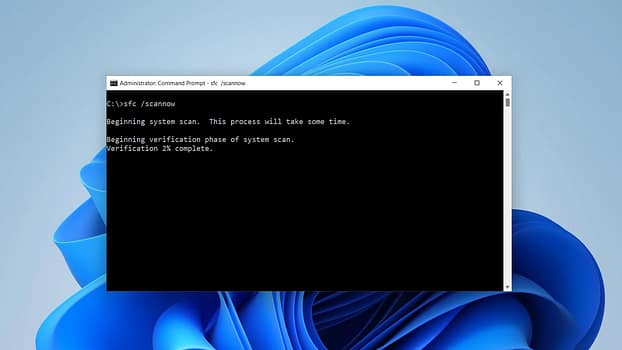
When Windows starts showing system errors, network problems, application crashes, or unexpected instability, reinstalling the operating system is rarely the first thing you should try.
Windows already includes several diagnostic and repair tools that can be accessed from Command Prompt (CMD). They can check protected system files, repair the Windows image, examine disk errors, reset network components, identify running processes, and generate reports about power usage.
The key is knowing which command solves which problem and when it is appropriate to use it.
Before Running Windows Repair Commands
You should have administrator access before starting. Most of the commands in this guide require an elevated Command Prompt.
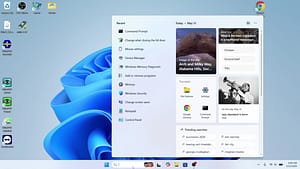
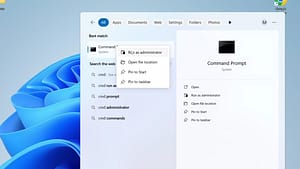
To open it, search for Command Prompt in Windows, right-click it, select Run as administrator, and confirm the User Account Control prompt.
A stable internet connection can also be useful because some Windows repair operations may need access to Microsoft’s repair sources.
Some operations, particularly disk checks, can take considerably longer than ordinary commands. Avoid interrupting a disk check while it is running.
1. Update Installed Applications With WinGet
Keeping applications updated can eliminate bugs and compatibility problems caused by outdated software.
Open Command Prompt as administrator and run:
winget upgrade


This displays applications for which WinGet can find available upgrades.
To attempt to update all available packages, use:
winget upgrade --all

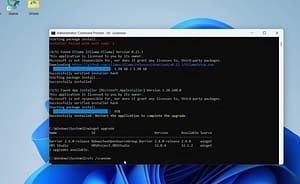
Microsoft documents --all as the option that upgrades all installed packages for which updates are available. It does not mean Windows itself or every hardware driver will automatically be updated. (Microsoft Learn)
A useful approach is to run winget upgrade first so you can see what will be updated before using --all.
2. Repair Windows Components With DISM
When Windows system files are damaged, Microsoft recommends using DISM (Deployment Image Servicing and Management) together with SFC.
Run:
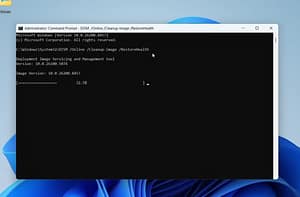
DISM.exe /Online /Cleanup-Image /RestoreHealth
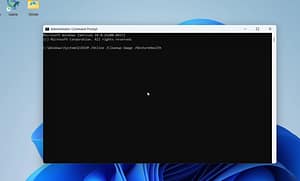
DISM checks the Windows component store and attempts to repair it. Microsoft specifically recommends running DISM before SFC in its current Windows support instructions. (Suporte Microsoft)
Do not close Command Prompt while the operation is running.
Once DISM reports that the operation completed successfully, move to the next step.
3. Scan Windows With SFC
After DISM, run:
sfc /scannow

System File Checker (SFC) scans protected Windows system files and attempts to replace corrupted files with cached copies. Microsoft advises allowing the verification to reach 100% before closing the Command Prompt window. (Suporte Microsoft)
The order is important when you are dealing with system-file corruption:
DISM first → SFC second
DISM repairs the underlying Windows component image, while SFC uses available system resources to repair protected operating-system files.
After SFC finishes, Windows will display a message explaining whether integrity violations were found and repaired.
4. Check the Drive With CHKDSK
Some Windows problems are related to file-system or disk errors rather than Windows itself.
The following command performs a more extensive check:
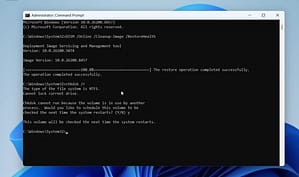
chkdsk C: /r

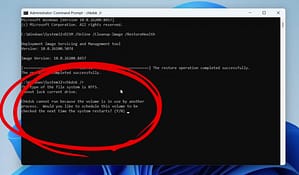
The /r option tells CHKDSK to locate bad sectors and attempt to recover readable information. It also includes the functionality of /f, which fixes logical file-system errors. (Microsoft Learn)
Because the Windows system drive is normally in use, Windows may ask whether you want to schedule the check for the next restart.
Type:
Yand restart the computer.
There is an important distinction here: CHKDSK checks the file system and attempts to deal with disk-related errors; it is not a substitute for a hardware diagnostic or a drive-health report. Microsoft notes that /r can take a considerable amount of time, particularly on large hard drives. (Microsoft Learn)
5. Reset Windows Network Settings With IPConfig
When Windows has trouble connecting to websites or obtaining a working network configuration, these commands can help refresh local networking information.
Run them one at a time:
ipconfig /flushdns

Then:
ipconfig /release

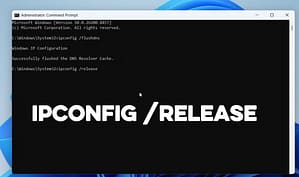
And finally:
ipconfig /renew

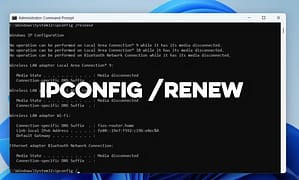
The first clears the local DNS resolver cache. The second releases the current DHCP configuration, while the third asks the DHCP server for a new configuration.
These commands can help with some local network problems, but they will not fix every internet connection failure.
6. Reset Winsock and TCP/IP
If ordinary IP configuration commands do not solve the problem, Windows also provides deeper network-reset commands.
Run:
netsh winsock reset

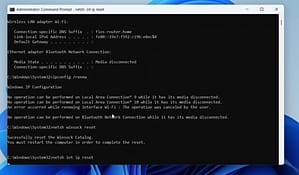
Then:
netsh int ip reset

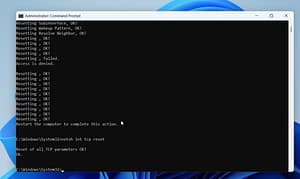
You can also reset TCP-related settings with:
netsh int tcp reset


Restart Windows after completing the commands.
This is particularly useful when software, network configuration or other changes have left networking components in an inconsistent state.
Do not treat a network reset as a universal solution, however. If the problem is caused by the router, ISP, Wi-Fi hardware or a faulty network adapter, these commands may not address the underlying cause.
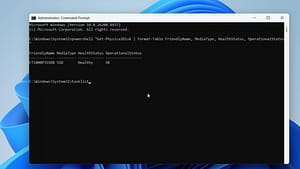
7. Check Physical Drive Health
Windows PowerShell can provide a quick view of the reported health status of physical storage devices.
From an elevated Command Prompt, run:
powershell "Get-PhysicalDisk | Format-Table FriendlyName, MediaType, HealthStatus, OperationalStatus"


The result includes columns such as HealthStatus and OperationalStatus.
A status other than Healthy deserves attention, but it should not automatically be interpreted as proof that a drive is about to fail.
The safest response to an unexpected storage-health warning is to back up important data first and then investigate the drive using appropriate hardware and vendor diagnostics.
8. Find and Force-Close a Frozen Program
When an application becomes unresponsive, you can identify its process from Command Prompt.
Start with:
tasklist

Windows will display running processes and their process IDs (PIDs).
Once you identify the problematic application, force it to close with:

taskkill /pid <PID> /fReplace <PID> with the actual process number.
You can also terminate a process by its executable name:
taskkill /im program.exe /fThe /f option forces termination, so use it carefully. Unsaved work in the affected application may be lost.
This is mainly a recovery tool for applications that refuse to close normally, not something you should use routinely on unknown Windows processes.
9. Generate a Windows Power Efficiency Report
Windows includes a built-in diagnostic report for power and energy-related problems.
Run:
powercfg /energy

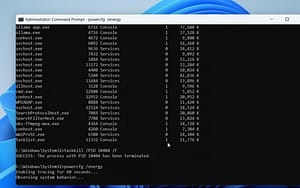
Windows monitors the system for approximately 60 seconds and generates an HTML report.
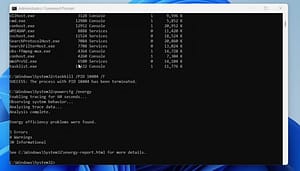
The report can identify power-management issues, devices, drivers and settings that may contribute to inefficient energy use.
When the command completes, Command Prompt displays the location of the generated report. Open that HTML file in a browser and review the warnings and recommendations.

This is particularly useful on laptops when investigating battery-life problems.
Bonus: Test Your RAM With Windows Memory Diagnostic
Not every crash or blue screen is caused by Windows files. Faulty or unstable memory can produce symptoms that look like software problems.
Search Windows for:
mdsched

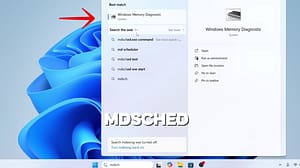
Open Windows Memory Diagnostic and choose whether to restart immediately or schedule the test for the next boot.
Windows will restart and perform a memory test before loading the operating system.

This is especially useful when you are experiencing repeated crashes, freezes or unexplained instability.
The Best Order Depends on the Problem
These commands are not one giant repair procedure that should always be executed from beginning to end.
For corrupted Windows system files, Microsoft’s current guidance is to run:
DISM.exe /Online /Cleanup-Image /RestoreHealthfollowed by:
sfc /scannowFor network problems, start with the IP configuration commands and move to the netsh resets when necessary.
For disk-related symptoms, CHKDSK is appropriate when there is reason to suspect file-system or disk errors.
For a frozen application, tasklist and taskkill are more appropriate than running system-repair commands.
And for battery or power problems, powercfg /energy can provide more useful information than generic system optimizers.
Avoid Running Powerful Commands Without a Reason
One of the biggest mistakes with Windows troubleshooting is treating CMD as a collection of magic commands.
A command can be technically correct and still be the wrong tool for the problem.
For example, repeatedly running CHKDSK will not fix a failing SSD, and resetting Winsock will not repair a faulty router. Similarly, winget upgrade --all updates supported application packages; it is not a general Windows repair command. (Microsoft Learn)
Use the symptom to choose the tool.
That approach is safer and usually much faster than running every command you find online.
Final Takeaway
Windows already includes a surprisingly capable set of diagnostic tools. DISM and SFC can help repair Windows components and protected system files, CHKDSK can investigate file-system and disk errors, network commands can reset local connectivity components, and tools such as taskkill, powercfg and Windows Memory Diagnostic can target specific problems.
The important part is not memorizing dozens of commands. It is understanding what each command actually does and when it should be used.
For system-file corruption, start with DISM and then SFC. For a broken network configuration, use the appropriate IP and netsh commands. For disk errors, investigate with CHKDSK and back up important data when hardware problems are suspected.
Used carefully, these built-in Windows tools can save you from unnecessary third-party “repair” software—and sometimes from a completely unnecessary reinstall.


