

If you suspect someone has access to your iPhone, don’t start by installing another “spy detector” app. Start with the tools already built into iOS.
A strange device connected to your Apple Account, an unfamiliar management profile, unexpected microphone activity or a forwarding setting you never enabled can tell you considerably more than a generic security app.
There is also an important distinction: none of the checks below, by itself, proves that your iPhone is being spied on. Some settings have legitimate uses, especially on company- or school-managed devices. The goal is to identify configurations or access that you don’t recognize and then investigate them.
1. Check whether the iPhone is supervised
Start with Settings and look at the top of the screen, around the area beneath your name.
A supervised iPhone can display a message indicating that the device is supervised and managed by an organization. This normally relates to Apple’s device-management systems used by businesses, schools and other organizations.
If you see a management message and the iPhone is supposed to be entirely personal, that’s worth investigating.
It does not, however, automatically mean someone is secretly spying on you. A work or school iPhone may be legitimately managed by an administrator.
What to look for: a supervision or management notice that you were not expecting.
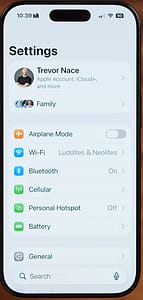
Image caption: The Settings screen can indicate whether an iPhone is supervised and managed by an organization.
2. Look inside VPN & Device Management
Next, go to:
Settings → General → VPN & Device Management
The exact options displayed can vary depending on the iPhone and installed configuration.
Look for configuration profiles, management entries or VPN settings that you don’t recognize.
This section deserves particular attention because device-management profiles can give an organization considerable control over certain aspects of an iPhone. But again, finding a profile isn’t evidence of malicious surveillance. Companies, schools and security tools can install legitimate profiles.
If you find something unfamiliar, don’t immediately delete it. First identify what installed it and why. Removing a legitimate work or school profile could disable services you need.
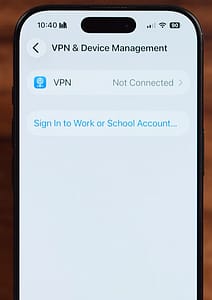
Image caption: VPN & Device Management is the place to check for unfamiliar management profiles and configurations.
3. Check Screen Time restrictions
Go to:
Settings → Screen Time → Content & Privacy Restrictions
If restrictions are enabled and protected by a Screen Time passcode you did not set, that deserves attention.
Screen Time can control access to applications, content, purchases and certain settings. It is commonly used by parents to manage a child’s device, so its presence isn’t inherently suspicious.
The red flag is the combination of unexpected restrictions + a passcode you don’t know.
If this is your personal iPhone and someone else appears to control these settings, find out how the configuration was created before changing anything.
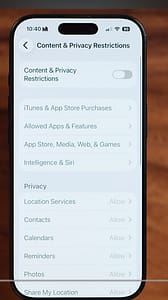
Image caption: Check whether Screen Time restrictions are enabled and protected by a passcode you did not establish.
4. Pay attention to the green and orange indicators
This is one of the easiest checks to perform.
iOS uses privacy indicators to show when applications access sensitive sensors:
- Green indicator: the camera is being used.
- Orange indicator: the microphone is being used.
If you see one of these indicators unexpectedly, open Control Center. iOS can provide information about recent camera or microphone activity.
Don’t immediately assume you’ve found spyware. An application may have a legitimate reason to use the microphone or camera, and some system functions can also trigger these indicators.
The useful question is simpler:
Does the application using the sensor make sense?
If the answer is no, investigate its permissions.
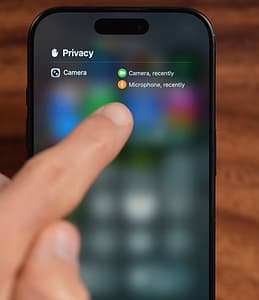
Image caption: iOS privacy indicators help identify when the camera or microphone is being accessed.
5. Don’t treat *#21# as a spyware detector
This is one area where online security guides frequently oversimplify things.
You may have seen instructions telling iPhone users to dial:
*#21#
The code can be used on some mobile networks to query certain call-forwarding settings, but its behavior depends on the carrier and network.
It is not a universal test for spyware.
If the response shows that a forwarding service is active, that tells you something about call routing — not that someone has installed surveillance software on your iPhone.
For actual call-forwarding settings, the more useful place to check is:
Settings → Apps → Phone → Call Forwarding
The menu structure can vary by iOS version and carrier.
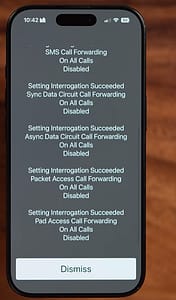
Image caption: Carrier codes can provide information about forwarding services, but *#21# should not be presented as proof of spyware.
6. Audit the devices connected to your Apple Account
This is one of the checks I would prioritize.
Open:
Settings → [your name]
Scroll down and examine the devices associated with your Apple Account.
You should recognize every iPhone, iPad, Mac, Apple Watch or other device listed there.
If you find an old device you no longer use, that may simply be an account-management issue. If you find a device that you never owned, however, investigate immediately.
An unknown device associated with your Apple Account deserves more attention than a mysterious battery drain or a phone that feels slightly slower than usual.
If you don’t recognize a device, select it and review the available account and security options.
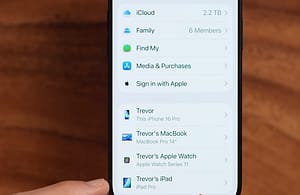
Image caption: Review every device connected to your Apple Account and investigate anything you don’t recognize.
7. Check Text Message Forwarding
If you use Apple’s Messages ecosystem, check whether your SMS messages are being forwarded to other Apple devices.
Depending on your iOS version, look under:
Settings → Apps → Messages → Text Message Forwarding
The devices shown should make sense to you.
An old Mac or iPad belonging to you may be perfectly legitimate. An unfamiliar device is a different matter.
If you discover a device you don’t recognize, disable forwarding to it and then review the security of your Apple Account.
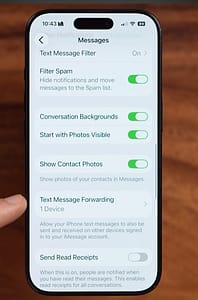
Image caption: Text Message Forwarding shows which authorized Apple devices can receive your SMS messages.
8. Check Call Forwarding
Now check:
Settings → Apps → Phone → Call Forwarding
If the feature is available on your carrier and enabled, iOS should show the number receiving forwarded calls.
If you didn’t enable it, investigate the number.
Call forwarding can have perfectly legitimate explanations — for example, a carrier configuration or a feature deliberately activated by the user. But an unexpected forwarding destination should not be ignored.
This check is particularly useful because it deals with an actual telecommunications function rather than trying to infer spyware from vague symptoms.
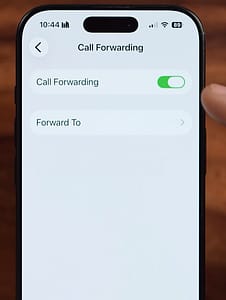
Image caption: Check the Call Forwarding setting and confirm that any destination number is legitimate.
9. Use App Privacy Report
For a deeper audit, open:
Settings → Privacy & Security → App Privacy Report
Apple’s App Privacy Report can show information about applications accessing sensitive data and sensors, as well as network activity.
Look at applications accessing:
- Location
- Camera
- Microphone
- Photos
- Contacts
The goal isn’t to find an application that accessed your microphone and immediately label it malicious.
Instead, ask whether the access makes sense.
A video-call application using the microphone is expected. A calculator application repeatedly accessing the microphone would deserve considerably more scrutiny.
The report is especially useful because it turns an abstract privacy concern into something you can actually inspect.
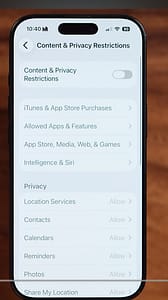
Image caption: App Privacy Report provides a record of application access to sensitive data and sensors.
10. Revoke permissions you don’t trust
If an application has access that you don’t think it needs, go to:
Settings → Privacy & Security
Then select the relevant category, such as Microphone, Camera, Photos, Contacts or Location Services.
Review the applications listed there and disable permissions that are unnecessary.
This is not only about spyware. Excessive permissions are a privacy problem even when an application isn’t malicious.
And if you find an application you don’t remember installing, don’t simply grant or revoke permissions without investigating it. Check what the application is, when you installed it and whether someone else with access to your phone could have installed it.
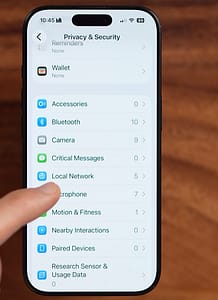
Image caption: Review and revoke camera or microphone permissions for applications that don’t need them.
What you need before starting
You don’t need special software to perform this basic audit.
You should have:
- Physical access to the iPhone
- Your device passcode
- Access to your Apple Account
- Enough time to review unfamiliar devices, profiles and permissions carefully
If another person has physical access to your unlocked iPhone or knows your passcode, account security becomes particularly important. In that situation, changing the passcode and reviewing your Apple Account security can be more useful than searching for mysterious background processes.
Three signs I’d take seriously
Not every unusual behavior means surveillance. Battery drain, overheating, slow performance and unexpected crashes have many ordinary explanations.
I’d pay much more attention to these:
An Apple Account device you don’t recognize.
Someone else’s device attached to your account is a concrete thing that can be investigated.
An unexpected management profile.
Especially on a personal iPhone that isn’t supposed to be managed by an employer or school.
Unexpected access to sensitive sensors or data.
An application repeatedly accessing the microphone, camera, location or contacts without a convincing reason deserves investigation.
Those are stronger signals than the usual internet myths about secret codes and “hidden spyware.”
What to do if you actually find something suspicious
Don’t immediately erase the iPhone unless you understand what you’re dealing with.
First, document what you found. Take screenshots, record the name of an unfamiliar device or profile and note any unexpected forwarding number.
Then secure your Apple Account, remove access you don’t recognize and update the iPhone to the latest available iOS version.
If you believe another person has access to your accounts, change important passwords from a device you trust and enable two-factor authentication where available.
And if the concern involves a controlling or abusive person who may notice changes to the phone, think about your personal safety before making changes that could alert them.


